5/26/10

How to Remove Windows XP Genuine Validation

Windows automatically checks your copy of Windows to see if it's valid. If your copy is or appears to be pirated, Windows XP will display a Genuine Validation message. The Genuine Validation, or Genuine Advantage Notification, appears as a log-in message, log-in timer and a balloon notification in the notification bar. Reasons this message may appear include the installation of a pirated copy of Windows XP, changed Windows XP license key or a Windows error.

Instructions

Step 1 :-

Open a command prompt window by going to "Start" > "Run." Type "cmd." Click "Enter" to open the command prompt window.

Step 2 :-

type "CD C:\Windows\System32" and click "Enter" to access the System32 directory.

Step 3 :-

Open a blank Notepad document by going to "Start" > "All Programs" > "Accessories" > "Notepad."

Step 4 :-

Type the next three lines into the blank document. Press "Enter" after each line. Note that for Windows Home systems, the command is "tskill" instead of "taskkill."

"taskkill -IM wgatray.exe"

"del wgatray.exe"

"del wgalogon.dll"


Step 5 :-

Press "Ctrl" + "a" to select all three lines. Press "Ctrl" + "C" to copy the lines. Open your command prompt windows and press "Ctrl" + "V" to paste and run the lines.

This will stop the Windows XP Genuine Advantage Notification task and delete associated files to prevent the notification from appearing again.

Step 6 :-

Restart your computer by going to "Start" > "Turn Off Computer" > "Restart" to ensure the notification is gone.

Tips & Warnings

Contact Microsoft Support if the message is caused by a Windows error. A customer service representative will be able to activate and validate your copy of Windows XP remotely.Removing the Genuine Advantage Notification will prevent you from installing Internet Explorer 7 and other Windows updates.

4/12/10

Confessions of a Windows 7 pirate

I’ve been hanging out with a bad crowd lately.

In the interest of research, I’ve been digging into message boards and forums run by unabashed Windows enthusiasts who are intent on breaking Microsoft’s activation technology. I’ve had these forums bookmarked for years and stop in every once in a while just to see what’s new. This time I decided to drop by and actually try some of tools and utilities to see if I could become a pirate, too.

Unfortunately, I succeeded.

In this post, I’ll share my experiences, including close encounters with some very nasty malware and some analysis on how the latest showdown between Microsoft and the pirates is likely to play out.

You won’t find names or direct links here—although these guys seem like genuine enthusiasts, I have no intention of giving them any free publicity. But if you’re interested in tracking down the tools I tested you should have no trouble finding them using the clues available in screenshots and descriptions here

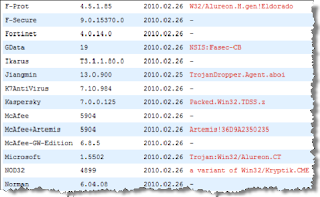
If you do intend to try this stuff out for yourself, I recommend extreme caution. My hunt for utilities that bypass Windows 7 activation technologies led me to some very seedy corners of the Internet. First, I did what any red-blooded wannabe pirate would do and tried some Google searches. Of the first 10 hits, six were inactive or had been taken down. After downloading files from the remaining four sites, I submitted them to Virustotal .com, where three of the four samples came back positive for nasty, difficult-to-remove Windows 7 rootkits.

Here’s one example:


And that experience is borne out by at least one real-world experience, which was reported, ironically, in the Talkback section of this blog. After I wrote about Microsoft’s most recent anti-piracy initiative last week, one commenter (a loud, proud Linux advocate) insisted that the update opened a secret back-channel, probably as part of a plot by Microsoft to covertly gain access to its customers’ PCs. A day or so later, after checking with his Windows-using friend, he returned with this sheepish admission:

It turns out his iso was not a bona fide purchased copy [of Windows 7], but rather a cracked version off of the net. In all likelihood the iso was trojaned

Indeed. Which is why I exercised extraordinary caution. For my hands-on tests, I used a fresh copy of Windows 7 Ultimate, installed without a product key. I then looked at two widely distributed tools that work in completely different ways.

Disabling Windows activation completely A clever little tool called RemoveWAT not only disables Microsoft’s activation subsystem, it also installs the latest anti-piracy update from Microsoft and then disables it, too!

Fooling Windows by tinkering with the BIOS Big PC makers get to install copies of Windows that don’t require activation. Naturally, pirates soon figured out how to make any PC look like it came from one of those big factories.

Microsoft versus the pirates Pirates are clever and fast. Microsoft is highly motivated to keep its lucrative Windows revenue stream intact. Are customers going to get caught in the crossfire?

Details and screen shots begin on

Disabling Windows activation checks completely

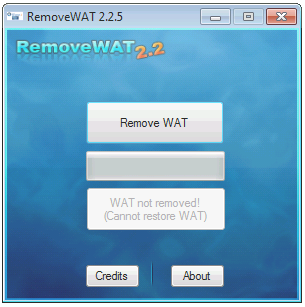
RemoveWAT first appeared last summer, around the time Windows 7 was released to manufacturing. The philosophy behind this small utility is simple: It disables the Windows Activation Technologies function while allowing the system to retain its Genuine status in every official check by Microsoft. The most recent version claims to work with all editions of Windows 7 and Windows Server 2008 R2. (It does not work with Windows Vista or Windows Server 2008.)

I downloaded the most recent edition of RemoveWAT (v2.2.5) and verified that it was clean. The single .exe file is small (less than 7MB), and the UI is simple:


After clicking the Remove WAT button and rebooting, I noticed a subtle but significant change in the System properties dialog box. The section describing my system’s activation status was gone. There was no sign of a Product ID or activation status. Nothing. Previously, a message in that section had told me that I had 30 days left to activate.

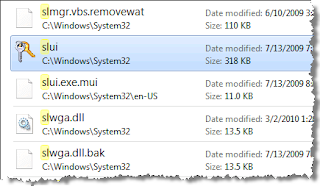
A close inspection of the Windows\System32 folder explained why. RemoveWAT installed its own patched version of a crucial DLL file in the Software Licensing subsystem, Slwga.dll. Thoughtfully, the program’s developer had coded it to save a backup of the actual file so that it could be restored if necessary. (And when I tested the Restore WAT function, I found it worked just fine on my system.)


As far as Windows was concerned, the system was perfectly valid. I was able to download and install optional updates through Windows Update and successfully validated the system so that I could install products reserved for Genuine Windows customers. I was also able to install Microsoft Security Essentials, which performs a validation check during setup.

In a fitting piece of irony, the most recent version of RemoveWAT actually goes out of its way to install Microsoft’s WAT Update (KB971033), which is designed to detect and remove tampering by programs like… well, like RemoveWAT. The pirate code remained working even when I ran the WAT update manually.

Fooling Windows by tinkering with the BIOS

The other popular approach toward cracking Windows activation takes advantage of the difference between retail and OEM copies of Windows. Retail copies have to be activated using a unique serial number. OEM copies from large system makers (Dell, Toshiba, HP, and so on, collectively known as Royalty OEMs) use a technique called System Locked Preinstallation (SLP). The preinstalled copy of Windows uses a single master product key tied to specific information in the system BIOS that is unique to that manufacturer’s systems. If the encrypted licensing information in the preinstalled copy of Windows matches the information in the BIOS, no activation is required.

Windows pirates figured out how to exploit this hack around the time Windows Vista was launched. The Windows 7 Loader program, which I used on a test system, looks at your PC’s BIOS to see whether it contains an ACPI_SLIC table with software licensing information (”markers” for the Windows operating system and the name of the computer maker). If the SLIC table is present, the tool installs the correct product key for your Windows 7 edition along with a digital certificate; the combination mimics a legitimate OEM preinstallation. For systems with a BIOS that doesn’t contain the proper SLIC tables (a scenario I didn’t test), it uses an alternate boot loader (typically some variant of GRUB) and installs BIOS emulation code to fool the system into thinking your system is a legitimate OEM installation. You can use the one-click installer or select from advanced options to personalize your PC by choosing a particular brand.

In this case, I had installed a retail copy of Windows 7 Home Premium on a relatively new system (purchased in mid-2009) that was originally licensed for Windows Vista. I didn’t enter a product key during setup, and I had gone more than 30 days without activating. Here’s what I saw when I ran W7Loader:
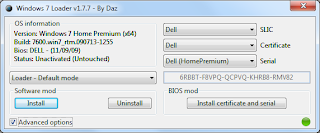


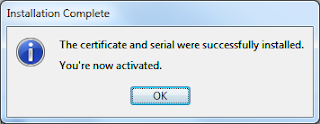
The installer correctly detected the brand (Dell) and Windows 7 edition. When I clicked the Install Certificate and Serial button on the right, I was greeted with this message:


The Empire strikes back

The two exploits I describe in this post are certainly not the only ones out there. Indeed, Windows pirates have been playing a cat-and-mouse game with Microsoft for years. In the Windows XP era, pirates focused most often on stealing legitimate product keys, especially Volume License keys. Beginning with Windows Vista, Microsoft has begun building anti-piracy components directly into the operating system, and pirates have aimed their hacking skills at those components with increasing sophistication.

The latest salvo from Microsoft in the war against pirates is the Windows Activation Technologies Update (KB971033). In its default configuration, it performs an initial validation check and then repeats the process every 90 days, downloading new signatures to detect exploits that flew under the radar in the previous scan. When I initially wrote about this subject last month, the question I heard most often was, “Why does it need to keep checking? If I get validated, shouldn’t that be good enough?”

Unfortunately, the experiences I’ve written about here prove why that strategy doesn’t work. If you used a copy of RemoveWAT that was created in 2009, you were able to fool Microsoft validation servers with a 100% success rate. However, as the anguished cries of forum participants proved, the KB971033 update in February exposed all of those hacks, restoring the correct license files and causing the systems to (correctly) fail validation. As a result, the RemoveWAT developer modified his code and released a version last week that trumped the new update and once again allowed hacked machines to pass the activation test.

In the past, that would have been counted as a win for the pirates. But with its new signature-based system, Microsoft can improve its exploit-detection code and, at least in theory, identify the updated hacks in 90 days (or, in the worst case, 90 days after that). The point is that pirates can’t count on getting a permanent free pass on activation. If you’re a hobbyist obsessed with pirating Windows, you have to put up with the nuisance of updating your hacking tools every few months. But if you’re selling pirated software (in a box or preloaded on a system), you risk getting put out of business and maybe sent to jail when the systems you sold in March are detected as pirated in June or July.

The other question I hear on the subject is, “Why pick on legitimate customers? Why not go after the real pirates?”

There’s a common misconception that only diehard hackers mess around with pirated software. The reality is that anyone can be a victim, especially if they ever need help reinstalling Windows or repairing some sort of hardware problem. I have lost count of the number of times I have seen a PC that contains a pirated copy of Windows installed by a nephew or a neighbor or even a local computer tech who was trying to share the cool thing he found on the Internet. Back in 2007, I wrote about a firsthand experience with a PC repair tech for a major national chain who used a pirated copy of Windows to “repair” my friend’s PC.

In that case, I was able to spot the unauthorized copy quickly and help my friend undo the damage (and get his money back from the crooked tech). If that were to happen today, the tech might be lucky enough to get away with the deception for a few months, but he would eventually be caught out.

One thing I learned while researching this piece is the phenomenal determination of pirates. They’ve become increasingly sophisticated and are able to react extremely fast to changes from Microsoft. For Microsoft, responding to those fast-moving targets without inadvertently inflicting collateral damage on its customers is a tremendous challenge.

Last weekend, I used some sophisticated forensic tools to take an equally close (and completely unauthorized) look at what Microsoft is doing with its most recent anti-piracy update. Tomorrow, I’ll publish the surprising results of that analysis.

3/18/10

Google Book Downloader

Google Book Search a unique place to search and read your favorite books before actually purchasing or to take reference from that book for your documents. Google Book search lets you to download non copy write and public domain books and documents in PDF format.

But you can’t download copy write Books from Google Book Search. A several restrictions are enforced for preventing downloading of copy write books, at max you can read some pages from that book. Here is small utility Google Book Downloader 0.1.0 for downloading and saving of books as PDF format from Google Book search


Google Book Downloader 0.1.0 can only download books which are marked as to full view. If you try to download copy write book then it not download all pages of book.

Download Google Book Downloader 0.1.0 Alpha 2.

Windows 7 Pre Beta 6801 Activate without Crack or Product Key

Windows 7 announced at recent Microsoft PDC 2008 event, with the announcement and screenshots of windows 7 users are becoming impatient to try and test windows 7. Thought windows 7 is not available for download to normal users but leaked version of windows 7 Pre beta torrents is spreading very fast.

You may download windows 7 Pre Beta 6801 but you will need to activate windows 7 to actually enjoy unrestricted features of windows 7. As said earlier for normal users it’s impossible to get activation key or Product Keys for windows 7 and there are no cracks for windows 7 activation is available yet.

Update: As of today (19th January 2009) Windows 7 Beta is available for Public Download as well as windows 7 beta 1 leaked on torrent site.

Download Windows 7 Beta 1 build 7000 32-bit

Download Windows 7 Beta 1 build 7000 64-bit

To activate Windows 7 beta 1 you can get activation keys

Windows 7 Beta Activation Product Keys

or you can use Genuine Activation PlusPatch V6 to activate windows 7

You can complete installation of windows 7 by leaving product key filed blank and enjoy Windows 7 Pre Beta 6801 for 30 days maximum before it gets expiry. The only way to activate windows 7 Pre Beta is by using product key for Windows Vista beta or RC edition.

Microsoft gave out free beta product key of windows vista
RC 1 and RC 2 to the user who has participated Windows Vista Customer Preview Program. The product Key was arrived in the email from service@microsoft.com that titled with subject of “Microsoft Windows Vista Beta 2 Order Confirmation and Product Key”, “Microsoft Windows Vista RC1 Product Key” that looked


Please keep this e-mail for your records.
**********************************

Thank you for your interest in Microsoft Windows Vista RC1. Your Product Key is included at the bottom of this message. You may install RC1 on up to 10 PCs using the same Product Key.

To help answer questions you may have related to installation and use, we have created newsgroups for Windows Vista RC1. To join or read postings in these newsgroups please visit http://windowshelp.microsoft.com.

For the latest information on Windows Vista, please visit http://go.microsoft.com/fwlink/?LinkID=65938.

Thank You,
Microsoft

Product Key:
XXXXX-XXXXX-XXXXX-XXXXX-XXXXX

o activate Windows 7 online, just enter the product key in Control Panel -> System and Security
– System Properties by clicking on Activate Windows now or Change product key link.

Features of Windows 7

Easier

Windows 7 will make it easier for users to find and use information. Local, network and Internet search functionality will converge.

More Secure

Windows 7 will include improved security and legislative compliance functionality.

Better Connected

Windows 7 will further enable the mobile workforce. It will deliver anywhere, anytime, any device access to data and applications

Lower Cost

Windows 7 will help businesses optimize their desktop infrastructure. It will enable seamless OS, application and data migration, and simplified PC provisioning and upgrading.

12/2/09

Tips :- more useful and secure USB pen drive

USB thumb drives are one of the most commonly used ways to transfer data if you happen to work across multiple computers. Lets just make the USB drives prettier, useful and secure.

1. Add icons and labels to your drive.

Download an icon you would want to see appear when you plug in your thumb(pen) drive. Place the icon at the root of the drive. Next open notepad and type the following:

[autorun]

label = ""

icon = "yourIcon.ico"

Save the file onto the root of your thumb drive and name it "autorun.inf", be sure to put the quotes or else it will be saved as a text file. Now Safely remove your USB drive and plug back in, the icon and name should appear in Windows Explorer if your did everything right. You can also automatically launch an application. If this is not the way you prefer to work use this neat application to generate the autorun.inf file automatically

2. Add a Start Menu to your USB drive

portable appsDownload and install the Portable Apps Suite on your USB drive, it not only gives you a nice start menu for your USB drive but also gives you the ability to run some of the most popular applications (like Firefox, Putty, OpenOffice, SumatraPDF, notepad++ and many more) right from your USB drive. A must have for your USB drive1

3. Use Mojopac

mojopacMojopac gives you your operating environment right on your USB drive. You can be rest assured that you will find a familiar interface with Mojopac on any pc you plug your USB drive into, all the customization will be preserved from computer to computer. Moreover it lets you operate without leaving any trace what so ever on the computer, so you can be rest assured about your privacy and data

4. Write Protect your Drive

My USB drive has a write protect notch that prevents it from being written onto when plugged on a computer, this is important because if the computer you are plugging into is infected than it can readily infect your USB drive. However if your drive cannot be write protected then you can use thumbscrew. It makes anything connected to the USB non writeable until you are sure and want to make it writeable.

5. Make Autorun.inf read only and system file

Thumbscrew may prevent writing on USB devices but it has to be already present on the computer you want to plug your USB drive into, so if its not possible for one reason or the other then you should make sure that you have a custom autorun.inf file and that its read only and has the system file attribute set. This prevents malicious code from writing entries to your autorun.inf and thus even if your USB drive may have a virus it won’t actually run it automatically. So a little bit more protection but not fool proof by any means.


6. Hold down the shift key

If you suspect your USB drive may be infected but still you have to plug it in to scan and remove the infections, then when you plug it in hold down the shift key to prevent autorun if its not already disabled.

7. Encrypt your drive using Truecrypt

true cryptYou can encrypt all the data on your USB drive using Truecrypt. This fives you added security if you have some sensitive data on your USB drive. Simply run it and choose your USB device to encrypt. TrueCrypt is free, Open Source and efficient and gives you extra security, download it here.

8. Sync your drive.

Microsoft offers an excellent application specially to address all your syncing needs. Its called the SyncToy. If you have to work on the same files on two different computers than you want to have the latest version of all files all the time, this can be easily done with synctoy. It offers both oneway and twoway synching. Its also free to download. Download it here

9. Backup your drive

toucanBacking up is always a nice thing to do, specially when you have to use it on different computers. There is a portable app to make this very easy. Its toucan, you can install it on your USB drive and back up, sync and encrypt your data as and when you want. Or else there is this the USB Image Tool that creates an image of everything you have on your drive and saves it as one file.

10. Make it bootable

pen drive linuxYou can install and run Linux from your USB thumb drive, this is an excellent way to recover systems that won’t boot, or to just plug it into another computer and do all of your work using linux applications and surf the net without leaving any history on the host computer. For this try pendrivelinux

Hacking Gmail


I know this post will get lots of clicks, because of its name. Now for the people with mischievous intents who managed to reach here, I m sorry to say that i don’t know how to get the password of someone else’s gmail account(unless the other person is careless enough to fall traps to social engineering). This article is a collection of tips and tricks that help to increase your Gmail productivity! Thats also known as hacking by the way.


Meanings of hacking (these are not all)


Hack #1: Address
Almost everyone knows about the "." trick with gmail addresses. Okay just in case you don’t know I will quickly point out that:

* mickeymouse@gmail.com
* mickey.mouse@gmail.com
* mickeym.ouse@gmail.com
* m.i.c.k.e.y.m.o.u.s.e@gmail.com

all refer to the same address. In other words mail sent to any of the above will go to the same inbox.

Hack #2: Address
Here is what most people don’t know, If you know this already go buy yourself a beer and send me the bill! The tip is that in addition to the "." hack there is also a "+" hack which is that you can add any text to your mail address using "+". eg

* mickeymouse+minniemouse@gmail.com still is same as mickeymouse@gmail.com

Hack #3: Labels
As elementary as they can be, not many people use them somehow. If you are like them and can’t find folders to arrange you mail and always wonder what that Green rectangle is there for then this is for you. Labels are Gmail’s equivalent of folders. Infact they say labels are even better than folders as a mail can be in more than one label.

* Click on edit labels
* Enter the name of the new label and click create. I hate to say this but for the traditional minded, now you have a "folder".
* Any time you need to move a conversation to the label use the "More Actions" drop down list and choose the label name under "Apply Label:"

Hack #4: Filters
The true power of the all the above tips cannot be utilized until or unless you use filters. As the name suggests filters do nothing more than filtering email. Its when used in combination with labels and the above hacks that they prove to be one of the most useful feature that Gmail has to offer.

* Click on settings.
* Then go to the filters tab(click on filters).
* You will see a create new filter link at the bottom. Click on it.

Filters are basically a search criteria, any mail that satisfy the criteria you provide will land be caught by the filter, what you want to do with filter is another thing. You can apply a label, forward to another account, delete , archive and loads of other stuff. By using hack #1 and hack #2 you can actually avoid unwanted mail and spam. eg if while registering the site requires email address then you can give your address as mygmailid+sitename@gmail.com, this way you know that any mail addressed to mygmailid+sitename@gmail.com is from that particular site or person and you can decide what you want to do with it :)
Bonus Hack: You can also create labels on the fly by clicking on the arrow next to the reply drop down when you are viewing a message to create a filter which matches the criteria for the current mail.


Filters on the fly

Hack #5: Keyboard Shortcuts
Again not many people use keyboard shortcuts on Gmail. For lazy people like me for whom moving their hand from keyboard to mouse is too much of a job this is great, actually its very fast, believe me once you get hold of it its amazingly quick. I seldom use mouse within Gmail.

* For most people c (compose), k (next), j (previous), r (reply), a (reply to all) , enter (open conversation), x (select) would be enough but there is a complete list at Gmail help page.
* Note that you can use C and R to compose and reply in a new window

Hack #6: Send .exe files
You probably know that Gmail doesn’t allow you to send .exe, .dll, .ocx, .com or .bat files for security reasons. Come on Google all of us should not suffer only because of some stupid people with malicious intent.
Anyway to send exe files either use some other service, or change the extension of the exe file or compress it, but zip compression wont work because Gmail can detect exe files within zipped files as well so try other formats.

Hack #7: HTML Signatures
Gmail doesn’t provide facility to add HTML signatures. However, there is an easy workaround to this. Copy the code you want to use as signature. Create a notepad file and add the following:


your code here


Save the file and open it in a web browser(Firefox, Opera etc). The page will be rendered by the browser. Click and Drag the mouse to select the rendered graphic or whatever and copy it. Go to Gmail, hit compose and then press Ctrl+v, there you have it – HTML signatures in Gmail. You will have to do this every time you want to use the signature so don’t delete the file if you are going to need it in future.

Hack #8: Search
Its Google Mail and how can we not include search in this. Now you might be wondering whats great in search, actually there is. There are a number of operators(keywords) that you can combine to search mail within a label, or only read messages or only from a particular user or only from a particular date and so on. Some people complain that lack of GUI features to search with all these criteria but hey if you are a power user you don’t need a GUI plus its faster this way!!


Search using keywords

Hack #9: Bookmarks and Bookmarklets
You can use your browser to bookmark any label or message type that you see often. Suppose you often like to view all the unread messages then you can type in search "label:unread" without quotes and you will see all your unread messages, but it doesn’t end here you can save it as a bookmark and then get back to it later, not only this you can save other searches as bookmarks too. Bookmarklets are piece of JavaScript code that enhance your productivity(mostly), There is a Gmail This bookmarklet that you can add to your bookmarks toolbar, clicking on which will open up a new compose window with the link to the current page as the body and its title as the subject of the new mail.
You can even bookmark a particular mail or conversation you have to get back to frequently.

Hack #10: Chat Invisible with Gmail
This is no hack! But increases your productivity for sure (if your friends like disturbing you). Well simply mentioning this here because a lot of people dont know it yet. The much awaited invisible mode is here. You can now chat invisibly on Gmail. Yuhooo!!

How to know if someone is invisible on Gmail

As you might be knowing from quite some time you can go invisible while chatting on Gmail. The invisible status is available in Gmail Chat, Google Talk gadget, Google Talk Labs Edition and Google Talk for iPhone .

What to do if you want to know if someone in really offline or is playing Mr. Hideous or as we call here in India – "Mr. India" ?

Follow these steps:

Step 1:

Open the chat window for the contact you want to confirm is offline of invisible

Step 2:

If you see a message "The chat is off record" then proceed to step 3, else click on options in the chat window (Gmail) or the down pointing arrow (Gtalk) and choose "Go Off Record" You will now surely see that "The chat is off record"

Step 3:

Now you need to interpret what you get.

* If you get a message in red like below, this indicates that the user is really offline.

As you might be knowing from quite some time you can go invisible while chatting on Gmail. The invisible status is available in Gmail Chat, Google Talk gadget, Google Talk Labs Edition and Google Talk for iPhone .

What to do if you want to know if someone in really offline or is playing Mr. Hideous or as we call here in India – "Mr. India" ?

Follow these steps:

Step 1:

Open the chat window for the contact you want to confirm is offline of invisible

Step 2:

If you see a message "The chat is off record" then proceed to step 3, else click on options in the chat window (Gmail) or the down pointing arrow (Gtalk) and choose "Go Off Record" You will now surely see that "The chat is off record"

Step 3:

Now you need to interpret what you get.

* If you get a message in red like below, this indicates that the user is really offline.


This shows the contact is offline

* If you get nothing then the user is invisible, or any status updates in gray it means the user is online but invisible.


This shows the contact is invisible

10/25/09

Introduction to PC Components

Here you will learn computer hardware tutorials introduction, basic pc components, networking devices, ram, vga, monitor and printer etc. Computer hardware is the physical part of the computer including the digital circuits inside the computer as opposed to the software that carry out the computing instructions. The hardware of a computer is unlikely to change frequently unless due to the crash or for upgrading them. The devices that is capable of storing, executing system instructions and controlling other logical outputs.

Hardware comprises all of the physical part of the computer such as Monitor, CPU, motherboard, ram, CD-Rom, printer, scanner, hard disk, flash drive (AKA pen drive), processor, pci buses, floppy disk, power supply, VGA card, sound card, network interface card, peripherals, joystick, mouse, keyboard, foot pedal, computer fan, camera, headset and others.

On the other hard software is a logical part of a computer and is used to carry out the instructions, storing, executing and developing other software programs. A typical PC consists of a case or chassis in the desktop or tower case and these components


Motherboard
• CPU
• Computer Fan
• RAM
• BIOS
• Digital Circuitry
• Computer Fan
• PCI Slots


PC Buses
• PCI
• USB
• Hyper-transport
• AGP
• ISA
• EISA
• VLB


Media
• CD-Rom
• DVD-Rom
• Combo box
• Joystick
• BD-Rom drive

Internal storage
• Hard disk (ATA & SATA)
• Data array controller
• Floppy disk

Other Peripheral Devices
• Mouse
• Modems
• Digital Camera
• Sound, Video Cards
• Printer

Output Devices
• Printer
• Scanner
• Monitor
• Speakers
• Headset
• Video output devices


CPU (Central Processing Unit): CPU or central processing unit relates to a specific or processor. The performance of the computer is determined by the CPU chip (processor speed) and the other computer circuitry. Currently, the Pentium chip (processor) is the most popular even though there are other chips available in the market today such as AMD, Motorola and others. The clocks speed becomes most important factor in determining the performance of a computer. The motherboard contains the hardware circuitry and connections that allow the different hardware components of the PC to interact and communicate with each other. Most computer software is being developed for the latest processors so it would be difficult to use the older systems.

Hard Disk Drives – Disk drive is the mechanism to run the disks. All disks need a drive to get the information, read it and put it back to the disks. Hard disk is used to store the data permanently. Often the terms disk and drive used to describe the same thing but it should be clear that a disk is a storage device.

Modem – A modem is used for the modulation and demodulation of the data that is transferred through the modem and the telephone lines. Modem translates the data from digital to analog from analog to digital. Because on the telephone lines data can travel in the form of the analog signals and in the computer data transmits in the form of digital signals. Modems are measured by the speed which is called baud rate. The typical baud rate is 56Kb.

Keyboard – The keyboard is used to type something or input information to the computer. There are different designs and models of the keyboards in the market. The most common layout of the keyboard is QWERTY layout. A standard keyboard has 101 keys and embedded keys.

Video cards - Video cards allow computer to display video, graphics and animation. Some video cards allow computers to display television. A video card with a digital video camera allows users to produce live video. A high speed broadband internet connection is required to watch the videos on net.

Network cards: Network interface cards allow PCs to connect with each other and communicate. Every network computer is required to have a NIC card. NIC cards are required both in wired and wireless networking.

Cables: There are two broad types of cables internal cables, which are embedded on the mother board circuit that performs the communication between the devices and CPU. The other types of the cables are the network cables like coaxial cable, CAT 5, Ethernet cables. These cables are used for the communication purposes between the devices or computers.

Memory – Memory is the one of the important piece of the hardware. Sometimes memory chip memory is confused with the hard disk memory. Sometimes unallocated space of the hard disk is used as virtual memory also known as page file. This type of memory is a temporary memory and is used actual memory is less and requires some additional memory to perform a specific task.


RAM (Random Access Memory)
RAM is a memory that is being used by the computer to store the information temporarily. For example when some work is performed on some applications that work is temporarily stored in the RAM. More RAM in the computer more faster computer works. Today at least requirement of a modern PC is 64 RAM. RAM is in the form of a chip and different vendors have developed the RAM of different capacities.

Mouse – Every modern computer requires a mouse for faster operations. Generally a mouse has two buttons left and right to perform different functions. One type of the mouse has a round ball under the bottom. Another type of the mouse use optical system to track the movement of the mouse.

Monitors – The monitor is used to display the information on the screen. All the activities of a computer, functions and tasks are seen on the computer screen and this is called outputting information. Monitors come in many sizes and shapes, monochrome or full colors. Today most computers use LCD screens. It is light weight and consumes less power as compared to the monitors.

Printers – The printer takes the information from the PC and transfers it to the paper of different sizes, which are placed in the printer device. There are three basic types of a printer such as dot matrix, inkjet and laser.

Scanners- Scanners allow you to transfer pictures and photographs to your computer. A scanner is used to scan the images and pictures. You can then send the image to someone, modify it or take a print out of it. With optical character recognition software you can convert printed documents into the text that you can use in the word processor.
Digital camera- You can take the digital photographs with the digital cameras. The images are stored on the memory chip of the digital cameras and you can transfer them to your computer with the USB drive.

Case – Case or casing covers the whole computer’s circuitry. There are two types of casings desktop and tower casing. There is room inside the casing to add or remove components. Cases come in many sizes like desktop, mini, midi and tower. There are some additional empty slots inside the cases such as IDE, USB, ASI, PCI and firewire slots.

Cards – Cards are the hardware components that are added to the computer to increase their functionalities and capabilities.

Sound cards produce the sound like music and voice. The older cars were 8, 16 and then 32 bits.
Color cards allow computers to produce colors. Initially there were 2, 4 and then 16 bits. The main types of the graphic cards are EGA, VGA and SGA. The 32 cards are the standard to display almost billions of the colors on the monitor.

8/20/09

Install Windows Vista From USB


This is Procedure How to install Vista from USB.Before read procedure you must need this


1. DVD-ROM or DVD-RW


2. USB Pendrive 4GB (Recommended 8GB)Note:USB must Ultra Fast Speed Like Apacer 4GB Handy Steno USB Flash Drive HT203, 200X Hi-Speed USB 2.0 or Kingston DataTraveller 2.03. DVD of Windows Vista InstallationProcedure1. Insert DVD of Windows Vista Installation2. Insert USB Pendrive (Must be formatted)


3. Open Command Prompt


4. Type XCOPY E:*.* /S /E /F H:Note:E: is Source Of Windows Vista Installation, You can change Drive Letter of DVD DriveH: is Target Destination of Copy, is USB Pendrive. You can change of Drive letter of USB Pendrive


5. Wait Until Finished


6. After Finished Safely Remove USB


7. Set Target Computer (Not Installed OS,OS is Broken,or Upgrade)Note:Make Sure Motherboard Support USB Booting and Boot Priority is Set to USB Pendrive First For Example: Kingston DataTraveller 2.0


8. After Boot USB Press Enter


9. Install Now of Vista


10. Don't Enter Your Serial Number and Click Next (After Show Message Click No)


11. Select Version Of Windows Vista


12. Accept Agreement


13. Format Harddrive of C:Note:If C: is formatted and filesystem is NTFS you can click next


14. after finished installation run Windows Vista Upgrade SP1


15. Wait Until a Hour


16. After finished Run Crack

4/25/09

Wireless Networking FAQ

This wireless networking FAQ addresses common concerns about wireless networks. Learn the differences between wireless and wired networks and get an overview of the equipment you'll need for a wireless network from these frequently asked questions (FAQ).

What is a Wireless Network?
A wireless local-area network (WLAN) uses radio waves to connect devices, such as laptops, to the Internet and to your business network and applications.

How Far Does the Signal Reach?
A wireless router or access point's signal typically extends up to approximately 300 feet.

What is a Wired Network?
A wired network connects devices to the Internet or other networks using cables. Some believed wired networks were faster and more secure than WLANs. But continual enhancements to WLAN standards and technologies have largely erased those differences.

Who Uses WLANs?
WLANs are frequently offered in public places such as cafes, hotels, and airport lounges. In addition, many businesses have wireless networks throughout their office buildings or campuses for employee and guest use.

What Equipment Do I Need?
Many routers act as WLAN access points. They connect multiple computers (and wireless-capable printers) to a single WLAN and to the Internet.
You can extend WLANs throughout an area by placing additional wireless access points in various locations. The access points extend the wireless signal's range and strength.
Most laptops have built-in wireless networking. If yours doesn't, you'll need a wireless network adapter card, which is typically inexpensive and easy to install.

How Can I Secure a WLAN?
There are many ways to secure your WLAN, including:
Data encryption, which only gives authorized users access to information over your wireless network
User authentication, which identifies computers trying to access the network
Secure access for visitors and guests
Control systems, which protect the laptops and other devices that use the network.

What are the Benefits of a WLAN?
Small businesses can experience many benefits from a WLAN. A few examples:
You can access network resources from any location within the wireless network's coverage area.
Wireless access to the Internet and to company resources help your staff be more productive and collaborative.
You don't have to string cables, as you do with wired networks. Installation can be quick and cost-effective.
You can easily expand WLANs where and as needed, because no wires are involved.
By eliminating or reducing wiring expenses, WLANs can cost less to operate than wired networks.

How Does a Network Switch Work?

How does a network switch work? How does it compare to a hub or router? The following is a brief overview that explains the differences between these essential pieces of network hardware.
How Does a Network Switch Work?: The Basics
How does a network switch in conjunction with other hardware? For starters, switches are a key component of many business networks. They connect multiple PCs, printers, servers and other hardware. Switches allow you to send information, such as email, and access shared resources, including printers, in a smooth, efficient, and transparent manner.
How Does a Network Switch Work?: Unmanaged Switches
An unmanaged network switch works right out of the box. But it's not designed to be configured. Usually, you'll find unmanaged switches in home networking equipment.
How Does a Network Switch Work?: Managed Switches
A managed switch gives you greater flexibility because it can be configured. For example, you can monitor a managed network switch and adjust it locally or remotely. This gives you control over network traffic and who has access to the network.
How Does a Network Switch Work as Compared to a Hub?
In the most basic networks, devices are connected with hubs. But there's a limit to the amount of bandwidth users can share on a hub-based network. The amount of time data takes to get to its destination increases on hub networks as more devices are added. A switch avoids these and other limitations of hub networks.
How Does a Network Switch Work as Compared to a Router?
Just as switches allow different devices on a network to communicate, routers allow different networks to communicate. A router also connects networked computers to the Internet, allowing multiple users to share a connection. And a router acts as a dispatcher. It chooses the best route for information to travel, so that it's transmitted as efficiently as possible.
Not sure what you need? Talk to a local Cisco reseller who understands your specific requirements. Your reseller can design, install, and help you maintain your network. You'll get a secure, reliable, affordable network backed by Cisco and customized to meet your needs today--giving you a clear path to tomorrow.

4/11/09

how to USE Laptop's in Traval

1. Use a well-made, well-padded case to carry your laptop in. Never check it as checked baggage during air travel.

2. Make sure security applications and software updates are current — anti-virus, firewall, anti-spyware.

3. Limit confidential information transmission, such as any credit purchases and reservations or anything with a Social Security number. Unfamiliar networks are always potentially dangerous.

4. Set up a remote Web mail account to enable e-mail access from any browser, such as Gmail, Yahoo! Mail or MSN Hotmail.

5. Bring an Ethernet (Cat5) cable with you on your trip, in case there is no wireless connection available and you have to hook up to that little box next to the phone that you'll find in most hotel rooms.

6. Use a system password on your laptop to help slow down the novice thief.

7. Use file passwords when available on confidential files.

8. Do not set your computer down and leave it out of sight (especially in the airport bathroom).

9. If you must leave your laptop unattended in a car, put it in the trunk where it can't be seen. But remember that extreme temperatures are not good for electronic devices.
10. Don't send your laptop through the airport X-ray conveyor belt until it's your turn to walk through the metal detector. That way you'll be able to pick it up promptly when it comes out the other end and prevent anyone else from walking away with it.

Basics Of Dual-Core Process Computer


The computer has been one of the most amazing and fruitful discoveries man has ever made. It has revolutionized the way man does his things. The way he eats, drinks, sleeps and even thinks. And computer itself has evolved over the years. From the Eniac I to the hand-held palmtops in executives` hands today, computer has changed with the technology. And it has changed our lives too.

The latest addition to this revolution of technical upgrading of computers is the dual-core processor technology. It refers to the CPU (Central Processing Unit- the brains of the computer) that possesses two independent and complete execution cores for each of its two processors. The concerned CPU contains two combined processors along with their cache memories and their respective controllers integrated into a singular circuit (commonly known as a silicon chip).
The dual-core process computer is suited to multitasking and handling miscellaneous tasks (often unrelated to each other). Because its CPU has two completely independent execution cores and both have independent interfaces to the front bus, it has excellent capacity to execute several programs and tasks simultaneously. Similarly, dual-core process computers may have more processor cores which is actually named as a multi-core process computer. These are highly efficient machines to conduct intensive tasks of computing or program execution at the same instance of time.

The Pentium dual-core process computer is the most preferred brand of computer in the market. It has x86-architectured microprocessors integrated onto its circuit. The 32-bit Yonah processors are a base for mobile computers while the 64-bit Allendale processors are maintained for the desktop computers. Both have absolutely different architecture as far as microprocessor technical build is concerned.

By early 2007, Intel decided to launch dual-core process computers in the field of notebooks or laptops too. This was a very important and vital decision as there were no other rivals in this phase if the market of computer architecture. Intel had only decided to launch the dual-core process computer system applying to notebooks on the behest of notebook or laptop manufacturers. The first processors to appear in notebooks using the dual-core process computer technology were the Pentium T2060, T2080 and a 32-bit Pentium M based on the Yonah core with a 1 MB L2 cache, instead of the usual 2MB cache memory.

Intel had forced a return of the Pentium brand to the market arena on 2006 with a host of low-cost single core Conroe-L core architecture processors with a 1 MB cache. These were numbered `1` to distinguish them from dual core process computer cores that had been labeled with the digit `2`.

More recently, on June 3, 2007, Intel released desktop dual-core processors from the Pentium brand. They were named as E2140 and E2160. September 2007 saw the late release of a better and updated model named E2180. These processors support the Intel64 extensions, because of their Allendale derived Core architecture. The power of these dual-core process computers was very imminent as most companies` demands exceeded supply over these multi-processor machines.

Dual-core process computer systems have taken over the world of computing today. As of its multi-tasking ability, it has gained world-wide acclaim due to its efficient, quick and yet superior quality program execution and task completion abilities. Heavier programs and complex games may be run with these dual-core process computer systems at the regular pace of conventional single-core processor systems did with light programs on the execution chart.

The age of computers had begun a long time back. But the age of sleek and efficient computing with the help of razor-edge technology has just begun with the dual-core process computer systems.

12/18/08

Better Search engine

Accoona www.accoona.com A.I. Search (HM)

AfterVote (SEM) www.aftervote.com Social Search

Agent 55 www.agent55.com MetaSearch

AllTha.at www.allth.at Continuous Search

AnswerBus www.answerbus.com Semantic Search

Blabline www.blabline.com Podcast Search

Blinkx* www.blinkx.com Video Search

Blogdigger www.blogdigger.com Blog Search

Bookmach.com* www.bookmach.com Bookmark Search

ChaCha* (#1 2006) www.chacha.com Guided Search

ClipBlast!* www.clipblast.com Video Search

Clusty* www.clusty.com Clustering Search

CogHog www.infactsolutions.com/projects/coghog/demo.htm Semantic Search

Collarity* www.collarity.com Social Search (HM)

Congoo* www.congoo.com Premium Content Search

CrossEngine (Mr. Sapo)* www.crossengine.com MetaSearch

Cydral http://en.cydral.com Image Search (French)

Decipho* www.decipho.com Filtered Search

Deepy www.deepy.com RIA Search

Ditto* www.ditto.com Visual Search

Dogpile www.dogpile.com MetaSearch

Exalead* www.exalead.com/search Visual Search

Factbites* www.factbites.com Filtered Search

FeedMiner www.feedminer.com RSS Feeds Search

Feedster www.feedster.com RSS Feeds Search

Filangy www.filangy.com Social Search

Find Forward www.findforward.com Meta Feature Search

FindSounds* www.findsounds.com Audio Search

Fisssh! www.fisssh.com Filtered Search (HM)

FyberSearch www.fybersearch.com Meta Feature Search

Gigablast* www.gigablast.com Blog Search

Girafa* www.girafa.com Visual Display

Gnosh www.gnosh.org Meta Search

GoLexa www.golexa.com Meta Feature Search

GoshMe* (SEM) www.goshme.com Meta Meta Search

GoYams* www.goyams.com Meta Search

Grokker* www.grokker.com Meta Search

Gruuve www.gruuve.com Recommendation Search

Hakia www.hakia.com Meaning Based Search

Hyper Search http://hypersearch.webhop.org.90.seekdotnet.com Filtered Search

iBoogie www.iboogie.com Clustering Search

IceRocket* www.icerocket.com Blog Search

Info.com www.info.com MetaSearch

Ixquick* www.ixquick.com Meta Search

KartOO* www.kartoo.com Clustering Search

KoolTorch (SEM) www.kooltorch.com Clustering Search

Lexxe* www.lexxe.com Natural Language Processing (NLP)

Lijit www.lijit.com Search People

Like* www.like.com Visual Search

LivePlasma* www.liveplasma.com Recommendation Search (HM)

Local.com* www.local.com Local Search

Mamma www.mamma.com MetaSearch

Mnemomap www.mnemo.org Clustering Search

Mojeek* www.mojeek.com Custom Search Engines (CSE)

Mooter* www.mooter.com Clustering Search

Mp3Realm http://mp3realm.org MP3 Search

Mrquery www.mrquery.com Clustering Search

Ms. Dewey* www.msdewey.com Unique Interface (HM)

Nutshell www.gonutshell.com MetaSearch

Omgili www.omgili.com Social Search

Pagebull* www.pagebull.com Visual Display

PeekYou www.peekyou.com People Search

Pipl http://pipl.com People Search

PlanetSearch* www.planetsearch.com MetaSearch

PodZinger www.podzinger.com Podcast Search

PolyMeta www.polymeta.com MetaSearch

Prase www.prase.us MetaSearch

PureVideo www.purevideo.com Video Search (HM)

Qksearch www.qksearch.com Clustering Search

Querycat http://querycat.com F.A.Q. Search (HM)

Quintura* www.quintura.com Clustering Search

RedZee www.redzee.com Visual Display

Retrievr http://labs.systemone.at/retrievr/ Visual Search

Searchbots www.searchbots.net Continuous Search

SearchKindly www.searchkindly.org Charity Search

Searchles* (DumbFind) www.searchles.com Social Search

SearchTheWeb2* www.searchtheweb2.com Long Tail Search

SeeIt www.seeit.com Image Search

Sidekiq* www.sidekiq.com MetaSearch

Slideshow* http://slideshow.zmpgroup.com/ Visual Display

Slifter* www.slifter.com Mobile Shopping Search (HM)

Sphere www.sphere.com Blog Search

Sproose www.sproose.com Social Search

Srchr* www.srchr.com MetaSearch

SurfWax* www.surfwax.com Meaning Based Search

Swamii www.swamii.com Continuous Search (HM)

TheFind.com* www.thefind.com Shopping Search

Trexy* www.trexy.com Search Trails

Turboscout* www.turboscout.com MetaSearch

Twerq www.twerq.com Tabbed Results

Url.com* www.url.com Social Search

WasaLive! http://en.wasalive.com RSS Search

Web 2.0* www.web20searchengine.com Web 2.0 Search

Webbrain* www.webbrain.com Clustering Search

Whonu?* www.whonu.com MetaSearch

Wikio* www.wikio.com Web 2.0 Search

WiseNut* www.wisenut.com Clustering Search

Yoono* www.yoono.com Social Search

ZabaSearch* www.zabasearch.com People Search

Zuula* www.zuula.com Tabbed Search (HM)

11/19/08

Some Common problems in system

Some Common problems in system

1. MONITOR LED IS BLINKING
Check all the connections like Monitor Cable, Data cables,RAM, Display Card , CPU connections.


2. CONTINUOS THREE BEEPS
Problem in RAM Connection.


3. THREE BEEPS ( 1 Long 2 Short)
Problem in Display Card Connection

4. THREE LONG BEEPS PERIOD WISE
Problem in BIOS or RAM (Basic Input Output System)


5. CONTINUOS NON-STOP BEEPING
Key Board Problem (I.e.; Some Key is pressed for Longer time)


6. FDD LED IS GLOWING CONTINUOSLY
Data cable to be connected properly (twisted cable).


7. NO DISPLAY ON THE SCREEN AT ALL
Hard Disk cable connected wrongly. Connect rightly seeing the Red mark (Faces power supply) and then Restart.


8. POWER LED IS OFF
a. Check main power cord
b. Check S.M.P.S.
c. Check Mother Board connection


9. SHOWING CMOS ERROR
Replace 3 Volt battery of Mother Board . Set Original Settings Manually.(Refer CMOS Setup chart)
Enter your search termsSubmit search form


10. SHOWING FDD ERROR OR FLOPPY DRIVE IS NOT WORKING PROPERLY

Check Power cord of FDD , Data Cables , set CMOS & Finally the Check drive.


11. SHOWING HDD ERROR OR HARD DISK FAILURE
a. Check Power Cord
b. Check connection of HDD
c. Check Data cable
d. Check Hard Disk parameters in CMOS or Auto detecting Setting Partitions by Fdisk Command, then format it to set track 0.


12. MOTHER BOARD HANGS DUE TO UNSTABILIZED POWER SUPPLY
a. Check S.M.P.S
b. RAM not functioning properly.
c. Software problem (due to using pirated software)
d. CPU fan not functioning properly.


13. DANCING SCREEN
a. Check Display card connection
b. Virus Problem
c. Video Memory Problem


14. SHAKING SCREEN
a. Earthing problem
b. Magnetic waves comes around.


15. CPU CABINET SHOCK
a. Check Earthing
b. Check main power cord.


16. NON-SYSTEM DISK ERROR
a. Floppy Drive having different disk (Non-Bootable Disk) OR CMOS Parameters for Hard Disk may not be set properly.
b. Hard Disk Partitions may not be created.
c. Hard Disk may not be formatted.


7. MISSING OPERATING SYSTEM
The System files missing namely Ie; command.com} - User File IO.SYS & MS_DOS.SYS } - Hidden Files. These above three files required for Start up of the system that can be transferred by using SYS C: Command OR While the time of formatting by using Format c:/u/s


18. MISSING COMMAND INTERPRETOR
May the file Command.com is corrupted OR Infected by Virus OR Some one has Erased it.


19. SHOWING I/O ERROR
a. The type of Hard Disk in CMOS may not be set properly.
b. Operating system used for formatting is not valid


20. SHOWING DIVIDE OVER- FLOW MESSAGE
a. May some Directories or Files crash with other files.
b. Use CHKDSK/F or SCANDISK Command to correct it.


21. HARD DISK MAKING NOISE WHILE PROCESSING
a. Unstabilized power supply.
b. Check for Loose Contact.
c. Do not use Y Connectors for Hard Disk.
d. It may create Bad Sector OR Weak Hard Disk.


22. HARD DISK HANGS WHILE PROCESSING
Check for Bad Sector by using CHKDSK or SCANDISK Command. If found format the Hard Disk and set Partition before that area.(This is the only procedure to use Hard Disk with Bad Sector) OR (To avoid Bad Sectors use Standard Power Supply)


23. HARD DISK NOT DETECTED
a. Check Power Connector
b. Check Data Cables
c. Check Jumpers


24. PARTITION NOT SHOWN
Operating System where the Hard Disk formatted is not supported with present Mother Board. For Eg: Hard Disk formatted with Pentium System will hide their partitions for 486 System.


25. MMX/DLL FILE MISSING
May the above files may be corrupted due to power failure or Virus. Make available above files from other Computer. OR Reinstall Windows 98 Operating System. (This procedure will not make any effect on existing Data).


26. WINDOWS REGISTRY ERROR
This will happen due to sudden ON/OFF of the system. Final solution is to Reinstall Operating System.


27. DISPLAY COLOUR DOES NOT MATCH
a. Configure Display Card properly with their CD.
b. The Standard setting for Windows is set it to 800x600 for better performance.


28. UNKNOWN DEVICE FOUND
May the Driver utility is not provided with operating system . Insert Driver CD and install software for the above Device. (Every Device requires driver utility to set active)

A Brief Introduction Into TCP/IP

Many people may not know what TCP/IP is nor what its effect is on the Internet. The fact is, without TCP/IP there would be no Internet. And it is because of the American military that the Internet exists.During the days of the cold war, the defense department was interested in developing a means of electronic communication which could survive an attack by being able to re-route itself around any failed section of the network.They began a research project designed to connect many different networks, and many different types of hardware from various vendors. Thus was the birth of the Internet (sorta). In reality, they were forced to connect different types of hardware from various vendors because the different branches of the military used different hardware. Some used IBM, while others used Unisys or DEC.

TCP (Transmission Control Protocol) and IP (Internet Protocol) were the protocols they developed. The first Internet was a success because it delivered a few basic services that everyone needed: file transfer, electronic mail, and remote login to name a few. A user could also use the “internet” across a very large number of client and server systems.
As with other communications protocols, TCP/IP is composed of layers. Each layer has it’s own responsibility:

IP is responsible for moving data from computer to computer. IP forwards each packet based on a four-byte destination address (the IP number). IP uses gateways to help move data from point “a” to point “b”. Early gateways were responsible for finding routes for IP to follow.

TCP is responsible for ensuring correct delivery of data from computer to computer. Because data can be lost in the network, TCP adds support to detect errors or lost data and to trigger retransmission until the data is correctly and completely received.

How TCP/IP works

Computers are first connected to their Local Area Network (LAN). TCP/IP shares the LAN with other systems such as file servers, web servers and so on. The hardware connects via a network connection that has it’s own hard coded unique address – called a MAC (Media Access Control) address. The client is either assigned an address, or requests one from a server. Once the client has an address they can communicate, via IP, to the other clients on the network. As mentioned above, IP is used to send the data, while TCP verifies that it is sent correctly.

When a client wishes to connect to another computer outside the LAN, they generally go through a computer called a Gateway (mentioned above). The gateway’s job is to find and store routes to destinations. It does this through a series of broadcast messages sent to other gateways and servers nearest to it. They in turn could broadcast for a route. This procedure continues until a computer somewhere says “Oh yeah, I know how to get there.” This information is then relayed to the first gateway that now has a route the client can use.

How does the system know the data is correct?

As mentioned above, IP is responsible for getting the data there. TCP then takes over to verify it.

Encoded in the data packets is other data that is used to verify the packet. This data (a checksum, or mathematical representation of the packet) is confirmed by TCP and a confirmation is sent back to the sender.

This process of sending, receiving and acknowledging happens for each individual packet sent over the Internet.

When the data is verified, it is reassembled on the receiving computer. If a package is not verified, the sending computer will re-send it and wait for confirmation. This way both computers – both sending and receiving – know which data is correct and which isn’t.

One nice thing about this protocol is that it doesn’t need to stick to just one route. Generally, when you are sending or receiving data it is taking multiple routes to get to its destination. This ensures data accuracy.

Just the facts:

TCP/IP addresses are based on 4 octets of 8 bits each. Each octet represents a number between 0 and 255. So an IP address looks like: 111.222.333.444.

There are 3 classes of IP addresses:

Ranges starting with “1” and ending with “126” (i.e.. 1.1.1.1 to 126.255.255.254) are Class A

Ranges starting with “128” and ending with 191 (i.e.. 128.1.1.1 to 191.255.255.254) are Class B

Ranges starting with 192 and ending with 254 (i.e.. 192.1.1.1 to 254.255.255.254) are Class C ( You will notice that there are no IP addresses starting with “127”. These are reserved addresses.)

Calculating an IP address

One of the things that always confused me was how to convert IP address to their Binary form. It is quite simple really. IP addresses use the Binary numbers (“1”s and “0”s) and are read from right to left.

Each position in the binary address corresponds to a number, from 1 to 128 and look like this:

128 64 32 16 8 4 2 1

To calculate an address, simply add the numbers where a “1” appears.

For example, the following:

00001010 works out to 10. Like this:

0 0 0 0 1 0 1 0
128 64 32 16 8 4 2 1

You can see that the “1”s line up with the 2 and 8 – when you add 2 plus 8 the answer is 10.

Since an IP address contains 4 of these octets, it can be displayed in binary like:

00001010.00001010.00001010.00001010

Therefore, IP Address 10.129.254.1 would be converted to:

00001010.10000001.11111110.00000001
(8+2) . (128+1) .(128+64+32+8+4+2).(1)

While it’s not important for the average person to know how to figure this stuff out, it is important for someone setting up a small network. That is because TCP/IP also uses what are called subnet masks to determine which addresses are valid.

Wireless Internet Tips

If you plan on sharing your wireless Internet access, you will need to have that option turned on in your settings. However, if you do not have other computers hooked up to the network at this time, for security purposes, you should leave the setting turned off until the need arises to share the wireless Internet access.

Wireless Internet Speeds

Coming in at the slowest is Bluetooth, followed by 802.11b, 802.11a and topping the charts currently is 802.11g. 802.11b is roughly equivalent to the traditional wired 10BaseT Wired Ethernet networks. Therefore, switching to Wi-If should not considerably slow down your wireless Internet connection .

Wireless Network Equipment While Traveling

You will need to have a wireless network card, either an adapter or integrated in your laptop. If you do not have an available slot on your PC, there are adapters you can purchase that plug into a USB port on the computer.

Finding a Wireless Internet Hot Spot

There are several stores and restaurants that offer wireless Internet access, such as Starbucks. If you have a particular destination in mind, you can call the hotels to see if they offer the service. There are also hot spot directories that you can search to find wireless Internet access.

Wireless Internet - WiFi Standards

802.11 is the Wi-If standard, however there are other standards which are variations of the 802.11. These include:

* 802.11a
* 802.11b
* 802.11g
* 802.11i.

The differences among these standards includes speed, transmission frequency, and price. 802.11g is backwards compatible with previous products, but that is not the case with 802.11a. Make sure you check on compatibility issues prior to purchasing products.

Wireless Internet and Dial up

It is possible to share a wireless Internet connection with dial up, but it is not a very good idea. Some access points, such as the airport extreme base station from Apple, will allow this. However, there is some slow down time with sharing a wireless Internet connection, and if you decide to share a dial up connection, you won't be surfing anything fast.

Finding a Wireless Internet Hot Spot in a Chain

If you are traveling and know that you will be stopping at Starbucks, for example, and want to access the Internet, you can check out their website to see what specific franchises offer wireless Internet access.

Paying for Wireless Internet Access

Most likely, you will need to pay for the high speed wireless Internet access when you travel. Starbucks for example uses T-mobile as their wireless Internet provider. You will need to have a t-mobile account in order to access WI-if at Starbucks. There are some restaurants that may advertise free Wi-If, but in general, you should expect to pay a fee.

Nationwide Wireless Internet Service

There are a plethora of national wireless high speed Internet services available. AT&T, Sprint PCS, T-mobile, and Verizon are a few which offer nationwide service. You will want to check out various pricing, roaming policies and fees for the various networks.

Mixing Apples and PC's to Share Wireless Internet Connection

You can mix apple and PC on a wireless network and share a wireless Internet access. For example, Apple makes an access point called the AirPort Extreme Base station. Even though it is made by Apple, it still uses the Wi-If standard, and PC computers with a wireless adapter on the network will be able to share the wireless Internet connection

Mixing Wireless Internet and Wired Internet

You can easily share a wireless Internet access while still maintaining a wired network. There are many wireless routers on the market which offer both wired and wireless network capabilities. It is also possible to add on an access point after a wired router for wireless access.

Configuring Wireless Access Point to Share Wireless Internet Connection

Once you install the drivers on your computer for the access point, you will be able to open up the configuration software that comes with the router. The IP address 192.168.0.0 is the lowest in the network and should be dedicated to the router. Make sure to follow the specific configuration instructions that come with your wireless router, as each product will be slightly different from one another.

Wireless Internet Equipment

The beauty of the WI-FI is that it set a standard for wireless networking. Because of this, you do not need to have equipment from all the same venders in order to run a successful wireless network. You will be able to share wireless Internet access as well without having equipment from all the same venders.

Configuring Wireless Internet Card

You will need to use the configuration software that comes with your network card to configure your computer to work at various hot spots. Simply type in the hotspot network name (various depending on the service you are using) and state the type of network, such as access point. You can also scan available wireless broadband internet access in the area and choose which network you wish to connect with.

Wireless Internet WIFI

WI-FI, the 802.11 standard, is important for a variety of reasons. Having a standard in the industry ensures that anyone using wi-fi will be using the same standard, therefore equipment and connections are interchangeable. Having a set standard makes setting up wireless networks, sharing wireless internet access and working with wireless equipment more users friendly.

10/31/08

How to stay healthy and fit

1. Move your body. Walk your dog; chase your kids; toss balls with friends, mow the lawn. Do anything that moves your limbs as it is an effective fitness tool and a stress buster.

2. Cut fat by avoiding fried foods, burgers and fatty meats. Opt for lower fat versions such as substitute butter, fat free cheeses and mayonnaise.

3. Smoking is injurious to health, so quit smoking to stay healthy. Thought for the day: Give up just one cigarette - the next one.

4. Stay away from stress. Exercise, meditation and spending 30 minutes a day doing something you like will allow you to stay cool.

5. Protect yourself from pollution. If you can't live in a smog-free environment, at least avoid smoke-filled rooms, high traffic areas, breathing in highway fumes and exercising near busy thoroughfares.

6. Floss your teeth. People who floss their teeth are more health conscious than people who don't. So floss and be your body's boss.

7. Avoid excessive drinking. As studies show a glass of wine or one drink a day (two for men) can help protect against heart disease, more than that can cause other health problems like cancer.

8. Have a positive outlook. There's a definite link between living well and having a cheerful outlook on life. You can't be unhappy when you're smiling or singing.

9. A natural remedy for coughs is a teaspoon of honey with a pinch of ground black pepper 2-3 times a day.

10. Beans are said to be rich in 'flavonoids' that help protect against heart disease and cancer. So don’t forget to eat your beans!

11. According to a new study drinking tea over a long period-- long, green, or black--builds strong bones. Bone loss can start in the thirties, especially in women.

12. To treat sunburn, take some leaves from an aloe plant and refrigerate them. After they have cooled, you can peel off the top layer of a leaf and apply the exposed gel directly to the sunburn.

13. Practice laughing at yourself. You just can't help becoming more accepting of your own shortcomings, and that's a sure-fire stress-buster.

14. Exercise is a powerful remedy against depression. The body's natural endorphins, elevated by a good workout, will naturally improve your mood.

15. Avoid the use of alcohol, sedatives and antihistamines which cause a "loggy," drugged feeling. Eat less protein and fat in favor of fruits and vegetables.

16. You may be wondering what seatbelts have to do with health. Statistics show that wearing seatbelts keeps you safe and therefore allows you to live longer.

17. Do not take fried foods instead have baked or steamed food. Include lot of salads and fruits in your diet. Take only one type of fruit at a time.
18. Whenever you are going somewhere near, make it a point to walk. Go for a walk every morning.

19. Yoga is one of the best ways to keep yourself fit and healthy. Meditation calms and relaxes your mind.

20. Take a nutritious diet which is very important for both physical and mental health. Include lot of fresh fruits, vegetables and pulses.

21. Take up a hobby besides your profession. It is a great way to relax and be happy. It relieves you of stress.

22. Go for an early morning walk and enjoy the fresh air and the beautiful sunrise. It is a sure way to de-stress yourself.

23. Listen to any music of your choice. It is a great way of relaxing.

24. Massage is a great way to de-stress yourself. Have a massage with essential oil or a warm scented bath.

25. Laughter is a great medicine. Watch a humorous movie which is a wonderful way to relax.

26. Don't bottle up your emotions, share it with a trusted friend or write it in a piece of paper and tear it.

27. Laughter is the best medicine according to many doctors. In fact, a single laugh may boost your immune systems defenses for up to 3 days.

28. A good to know health tip is that beer and wine can actually be good for you and help you to live longer.

29. Eating a naturally healthy breakfast every morning makes you less likely to suffer a heart attack.

30. A 4-5% reduction in your water intake may reduce your concentration and performance by as much as 30%.

31. Eat at least one good serving of uncooked food before every meal. You'll be pleased by how much weight you'll lose and how much better you'll feel

Tips to get smarter, better at work

1. Effective communication forms the foundation for a positive work alliance. You need to be able to tell your potential ally what you need and listen deeply to what they need.
2. Treat your allies as equals. No matter their position within your organization, all people are equal; they just have different jobs. Believe this.
3. Exhibit total professionalism. Never participate in gossip or in discussing the business of coworkers behind their backs.
4. Make sure you are not forming an exclusive club that the rest of your organization will fear and resent. But, you must take the time to develop strong relationships with your allies.
5. When working on a project together, always put forth your best efforts. Be the person who is willing to do extra to strengthen the collaboration and the outcome or product.
6. Keep your promises. If you say you will do something, do it. People need to depend upon you and the deadlines to which you commit.
7. Resolve any conflicts or disputes at your earliest opportunity. Unresolved conflict festers just under the surface in organizations.
8. Be an ally. Support your colleague’s ability to accomplish his or her mission, too. Give credit for ideas and solutions.
9. Effective managers delegate and don’t micromanage. Prioritize your tasks to focus on the important ones.
10. Your workspace should keep you motivated, not provide hot spots for daydreaming. Dress up your desk with items that keep you focused.
11. Too much to do at work? Add another task to your list: take a vacation and relax. People can’t operate at full throttle on the job day after day.
12. It’s a fact that taking breaks will increase productivity. It’s been proven in studies. If you need to, find someone to help ensure you take a morning and afternoon break.
13. Establish a routine of planning your week and your day. This will allow you to have your most productive week all the time.
14. Delegate or delete the non-essential items from your to-do list. The best way to do this is to always do your most important things first.
15. Make sure you plan in enough time between activities and appointments, and find ways to fail proof being on time.
16. Choose to enjoy your time at work. Find others who are like this and spread good cheer. It’s contagious and it grows.
17. Deadlines, tough bosses, rude clients, slow computers. Don’t make them into large dramas. Don’t lament the challenges of the world.
18. Try doing something different. If you always go on a trip, try taking a more local vacation, and really get some good rest time.
19. When you complain or fight on everything, then your power to ask for things is diminished. Save it up for when you really need it.
20. Don’t wait for your company to tell you what to do. Think creatively about how you can work with others to generate a greater result than if you had each worked on this alone.
21. If you are asked a question that stumps you or surprises you, never feel like you have to answer it right away. Seek more time to think about or research your answer.
22. Don’t immediately reject critiques from others, even if you don’t like or respect them. Sometimes people you don’t like may be giving you more honest feedback.
23. Be open to change. Give it a chance. Adapt to new things while using your experience to guide you, and you will have great success.
24. Always be on the lookout for opportunities to learn and improve your skills. Look for good seminars and training.
25. Set up a routine for “busy days” - perhaps you work 2-4 extra hours, and stick to that schedule, working nothing beyond it.
26. Schedule things like “break”, “coffee”, or even “video games” into your calendar just like you would a conference call.
27. There is a time and a place for perfectionism - when things are busy, consciously choose the areas in which you are willing to slack. 28. Whether it be business or personal support, busy times call for a morale boost on a regular basis. Hire a temp virtual assistant or call a good friend.
29. Everyone has a few things that are guaranteed to bring your stress level down to normal. Know your ‘relax buttons’ and get them on your schedule now.
30. For many people, a computer is the central tool at work. Optimizing the energy settings for computers and other devices can be more than a modest energy saver.

10/17/08

Google Search Tips and Tricks

Google Phrase Search
Google provides phrase search using quots.
Examples:

"Cricket Schedule"
"Get HTML" codes in php

Google Book Search
Google helping to get the world's information online by bringing online books.
Examples:

Books about Health
Books about Water


Google Cached Links
Google takes a snapshot of each web page at any website. It shows that what Google has in its cache or index.
Examples:

cache:http://www.yahoo.com
cache:http://www.msn.com


Google as Calculator
Google is complete calculator and can resolve math equations.
Examples:

5+5*10.5
7^2 (7 raise power 2)
sqrt(25) (Square root of 25)
1 mile = ? yards
1 yard = ? cm
1 kg = ? pound
80 F = ? C


Google Currency Conversion
Google can convert any currency of the world according to fresh market.
Examples:

1 USD = ? PKR
1 Pound = ? USD
1 USD = ? Yen


Google Definitions
Google can define any word.
Examples:

define:book
define:internet
define:human


Google Weather
Google provides world weather. You can search weather of your location.
Examples:

Weather Lahore, Pakistan
Weather Toronto, CA


Google Stock Exchange
Google displays stock exchange statistics for any company. (Note you must type the ticker symbols, not the company name.)
Examples:

stock:MSFT
stock:INTC


Google Question Answer
Google answers straight forward questions.
Examples:

Population of Pakistan
Capital of Japan
Prime Minister of Canada


--------------------------------------------------------------------------------
Google started another search about Blogger or BlogSpot which is still in beta mode.
http://blogsearch.google.com/